Editing Your Video
Many of the edits described here can be done by asking instead of clicking. The Rush Agent handles clip replacement, footage sourcing, voiceover regeneration, and project-wide settings changes from a plain-language request, and it is usually quicker for a single targeted fix.
This page covers the editing tasks you’ll use most often, replacing clips, adjusting audio, working with text, and managing transitions.
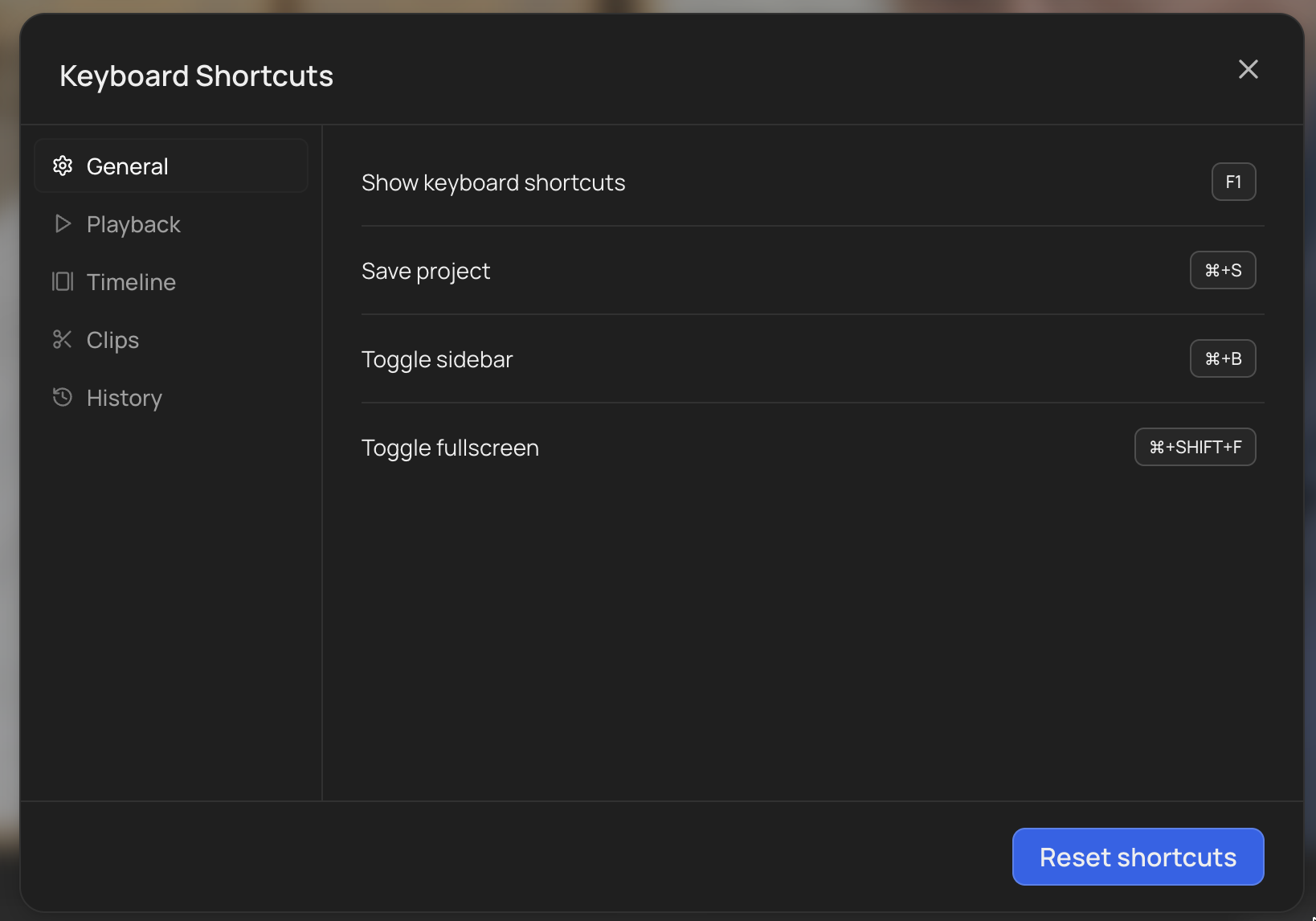
Keyboard shortcuts
The new editor supports keyboard shortcuts for faster editing:
- Zoom timeline: Ctrl + Mouse Wheel
Replacing a clip
Click any visual element on the timeline, then select Replace Media. You have four options:
- Stock library: Search VidRush’s built-in library for a replacement.
- Storyblocks: search the integrated Storyblocks library directly. The footage is licensed.
- Local upload: Upload an image or video file from your computer via the “Local” tab.
- URL paste: Paste a direct image or video URL from the web to grab a specific asset.
Adjusting audio
All audio controls live in the Canvas & Timeline Settings panel on the right side.
Background music too loud? Lower the Audio Overlay slider. This adjusts the music volume relative to the narration.
Transition sounds too aggressive? Lower the Template SFX slider.
Video clip audio interfering? Adjust the Video Audio slider to control the volume of embedded clip audio.
You can also manage individual audio elements directly on the timeline. The orange blocks represent narration, and you can click them to adjust or replace specific segments.
The Audio tab now includes the integrated Storyblocks library for licensed music and sound. Search for a track and drop it straight onto your timeline.
Working with captions and text
Toggle captions on or off using the Enable Captions switch in the right panel. This controls subtitle visibility globally across the entire video.
Editing text overlays: Click any text element on the timeline or canvas to edit its content, position, size, or styling. Text styling options depend on the theme you selected during generation.
Adding text: Use the Text tool in the left sidebar to add new text overlays anywhere on the timeline.
Managing files in bulk
Open Files in the left sidebar. You can now select multiple assets at once and apply bulk actions, and you can sort your local footage to keep large projects organized.
How much you can upload
Uploaded assets count against a storage allowance that comes with your plan. This is one total across every project, not a per-video limit, so deleting a project frees its assets back up.
| Plan | Storage |
|---|---|
| Starter | 1 GB |
| Creator | 3 GB |
| Pro | 10 GB |
| Scale | 30 GB |
| Studio | 500 GB |
This covers what you upload yourself: footage in the Local tab, images, and audio. Stock footage VidRush sources for you does not count against it, nor does your rendered output.
If you are close to the limit, the Files tab is where to clear space. Bulk-select the assets you no longer need, usually rejected takes and superseded uploads, rather than deleting whole projects. See “Managing files in bulk” above.
Animations and overlays
Open the Animations section in the left sidebar to browse available overlays:
- Subscribe CTA: A subscribe button overlay. Drag it onto your timeline near the end of the video. If you used a Custom Script with “Subscribe” near the end, VidRush may have added this automatically.
- Chapter titles: Section header animations that appear between segments.
- Other motion graphics: Various overlays available depending on your selected theme.
To move an animation on the timeline, drag it to the desired position. Some animations have limited customization, if you don’t see a setting you need, open a feature request on Discord.
Color grading
VidRush applies a colour grade to your footage automatically, so a video cut from a dozen different stock sources looks like one piece rather than a dozen. There is no preset to pick and the grade is chosen for your video and applied during generation.
Two things decide whether you see it at all.
Grading only runs on Experimental reasoning. On Low or Medium your footage is left ungraded. If your video looks flatter or less consistent than one you made before, check your reasoning effort first. See Generation Models.
Grading is applied to B-roll only. Talking-head footage, AI Avatar clips, and map clips are left alone deliberately. Grading a presenter’s face alongside stock footage made skin tones drift, so those clips keep their original colour. See Talking Head and AI Avatar.
Older projects. The B-roll-only rule is applied when a project is converted, not retroactively. A project converted before this changed keeps whatever grade it was given at the time, which can include grading on talking-head footage. Regenerating is the only way to move an older project onto the current behaviour.
Ask the Rush Agent to change the grade rather than adjusting colour values clip by clip. It applies a grading preset across the project in one instruction, which is what the grade is designed around.
Transitions
VidRush uses a Smart Transition System, typically a 70/30 ratio of cuts to animated transitions.
Edit a single transition: Click the transition marker between clips on the timeline. You can change the transition type or delete it entirely.
Disable all transitions: Toggle off Show Transitions in the Canvas & Timeline Settings panel. This removes all animated transitions globally, leaving only hard cuts.
Timeline navigation
Can’t select small clips? Zoom in. Use Ctrl + Mouse Wheel or the Zoom slider in the right panel to expand the timeline view. The “Zoom Here” button centers the zoom on your current playhead position.
Magnetic Snapping (enabled by default) helps elements align to each other on the timeline. Turn it off in the right panel if you need pixel-precise placement.
Hiding elements: You can hide any timeline element so it won’t appear in playback or the final render. This is useful for temporarily removing a clip without deleting it.
Exporting the transcript
Click the Export Transcript icon in the bottom-right toolbar to download the full narration text as a file. This is useful for YouTube descriptions, blog posts, SEO optimization, or creating companion written content.