Custom Avatar
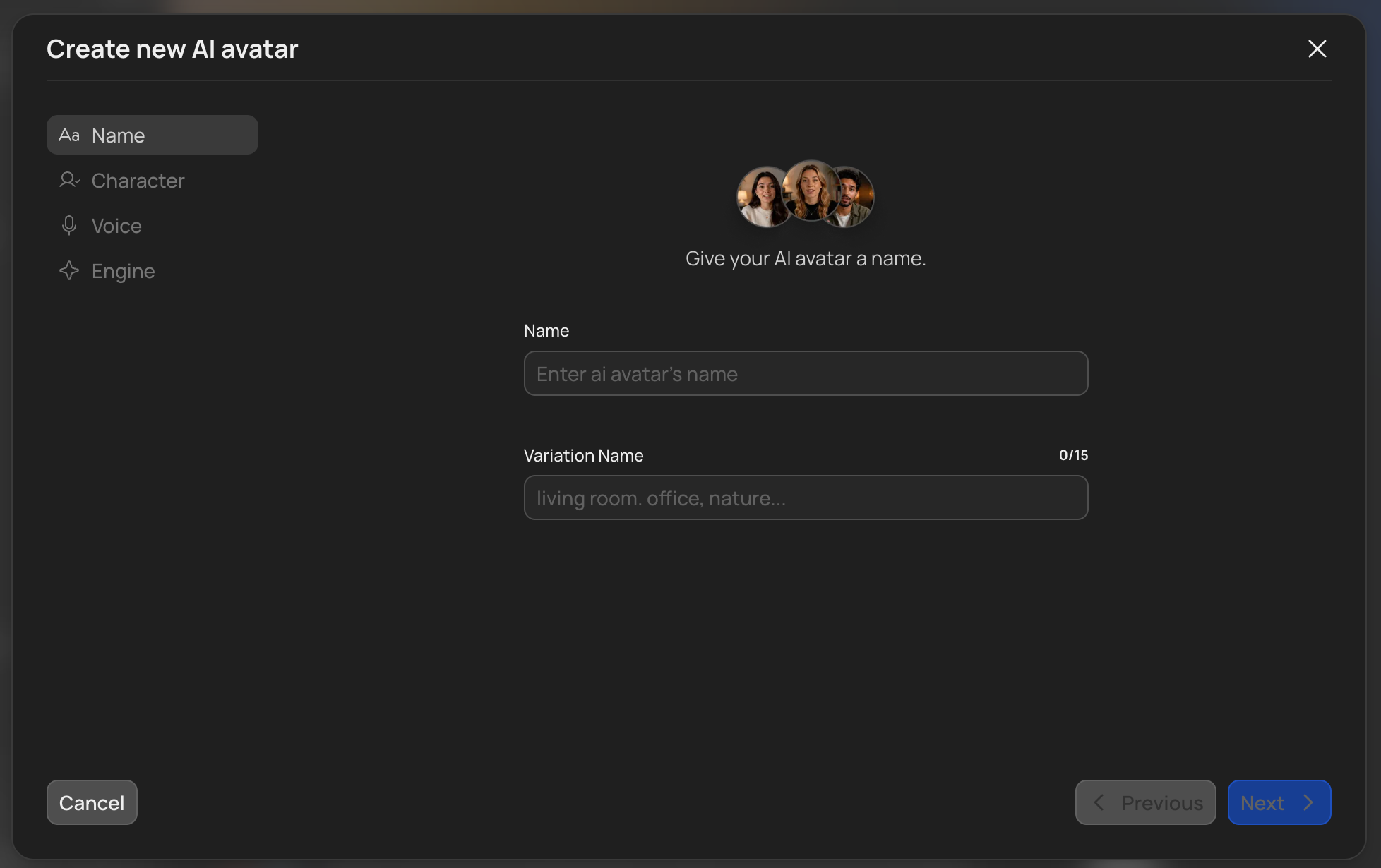
Upload one photo of yourself and VidRush turns it into a reusable AI presenter. Your custom avatar works anywhere a VidRush avatar does: pick it in the prompt window, give it a voice, and it presents your videos to camera.
This is the option when your own face is the brand. Founders, creators, and coaches who want to appear on screen without filming every video no longer have to pick from the VidRush set.
Custom avatars are private to your workspace. Nobody outside it can see or use them.
If you would rather film yourself, see Talking Head. For the published VidRush presenters, see AI Avatar. For the avatar-led production model, see Persona I.
How to create a custom avatar
Check which workspace you are in before you click Create avatar. A custom avatar belongs permanently to the workspace that created it. It cannot be moved, copied, or transferred afterwards, and support cannot move it for you.
The avatar creation screens do not show which workspace you are in, so check the workspace switcher in the bottom-left corner of the dashboard first. See Workspaces & Team Management.
- Open My Avatars and click Create avatar.
- Choose Custom avatar rather than Preset Avatars.
- Name it. This is your own label for the avatar.
- Name the variation and describe its background. A custom avatar has one look, so this is the label and background description for that single variation.
- Upload one photo. The requirements are shown before you pick a file. Your photo is checked for usability and previewed before it is saved.
- Pick a voice from the full Voice Selection library.
- Save.
That is the whole flow. Saving is quick, because what is stored is your photo and your settings rather than a set of pre-built clips.
Everything after the selection works exactly as it normally does: prompt field, reasoning effort, The Quote Statement, and editor. Nothing about using a custom avatar is different from using a VidRush one.
How it works
Your avatar is not filmed or pre-rendered. VidRush saves your photo, and the moving footage is generated fresh during each video generation, matched to that video’s narration.
That is why the presenter suits what is being said rather than repeating the same handful of gestures, and why there is nothing to wait for when you save one.
What it costs
There is no charge for saving an avatar and no package to buy. The presenter is generated as part of the video, so the cost sits in the video’s per-minute rate rather than in the avatar itself.
A video made with a custom avatar is charged per minute of finished video, the same way every other video is. See Credits & Billing.
Photo requirements
Your avatar’s quality is decided at the upload step. A weak photo cannot be rescued later, so the requirements are shown before you pick a file, and a photo that is refused tells you which rule it broke.
| Check | What passes |
|---|---|
| One subject | Exactly one person, head and shoulders in frame, nothing cut off at the edges |
| Facing camera | Looking at the lens, head upright, eyes open. No profile view or steep tilt |
| Face visible | Nothing across the face. Clear glasses and hats are fine; sunglasses, masks, hands, and hair over the face are not |
| Expression | Neutral, or a light closed-mouth smile |
| Focus and light | Sharp and in focus, face evenly lit. No motion blur, hard shadow across the face, or strong backlight |
| Resolution | A reasonably high-resolution photo, with the face taking up a good part of the frame. A modern phone photo taken close up is fine; a distant crop from a group shot is not |
| Unedited | The original photo. No beauty filters, heavy retouching, stickers, or text over the face, and not an AI-generated or cartoon image |
| File | JPG, PNG, or HEIC, up to 10 MB. Portrait or square framing preferred |
The check repairs what it can, including rotation, cropping and mild exposure, rather than refusing. It only turns down what it cannot fix, and it tells you which rule failed so you know what to change.
The single biggest improvement you can make is a plain, well-lit, straight-on photo taken close up with a modern phone. Filters and retouching are the most common reason a photo is refused, and the fix is simply to upload the original.
What Custom Avatar cannot do
- Use more than one photo. One photo per avatar. Reference videos and multi-photo uploads are not supported.
- Build more than one variation. A custom avatar has a single look. You name the variation and describe its background once at creation, and cannot add alternative variations to the same avatar afterwards.
- Replace the photo later. The name and the photo are fixed once the avatar is saved. The voice can be changed at any time.
- Be moved between workspaces. A custom avatar belongs permanently to the workspace that created it. It cannot be moved, copied, transferred, shared with another workspace, or published into the public catalog, and support has no way to move it either. See Workspaces & Team Management.
- Speak German or Spanish. Avatar videos are English only, the same as preset avatars. See Multi-Language.
- Escape the avatar content rules. A custom avatar is held to exactly the same stricter standard as a preset one. See Input Validation.
Good to know
- A custom avatar is an avatar in every other respect. Same single-presenter rule, same Brand Profile styling around it. See AI Avatar.
- Uploading someone else means having their permission. If the face in the photo is not yours, make sure you have the right to use their likeness.
- Your photo is personal data and is kept inside your workspace. It is not reachable by anyone outside it.
- Deleting an avatar does not affect videos you already made with it. Finished videos keep their presenter. What you lose is the ability to make new videos with that avatar.
- The avatar is a presenter, not a performer. It delivers narration to camera. It does not demonstrate, gesture at things on screen, or react.