Brand Profiles
A Brand Profile is your channel’s identity saved in one place. The days of re-selecting a voice, theme, background, and compliance rules for every single video are over; you set them once and VidRush applies them to every video on that channel automatically. Think of it as the “house style” layer for your whole channel, so each upload looks and sounds consistent without manual setup. You can create multiple Brand Profiles, one per channel, and switch between them from the dashboard.
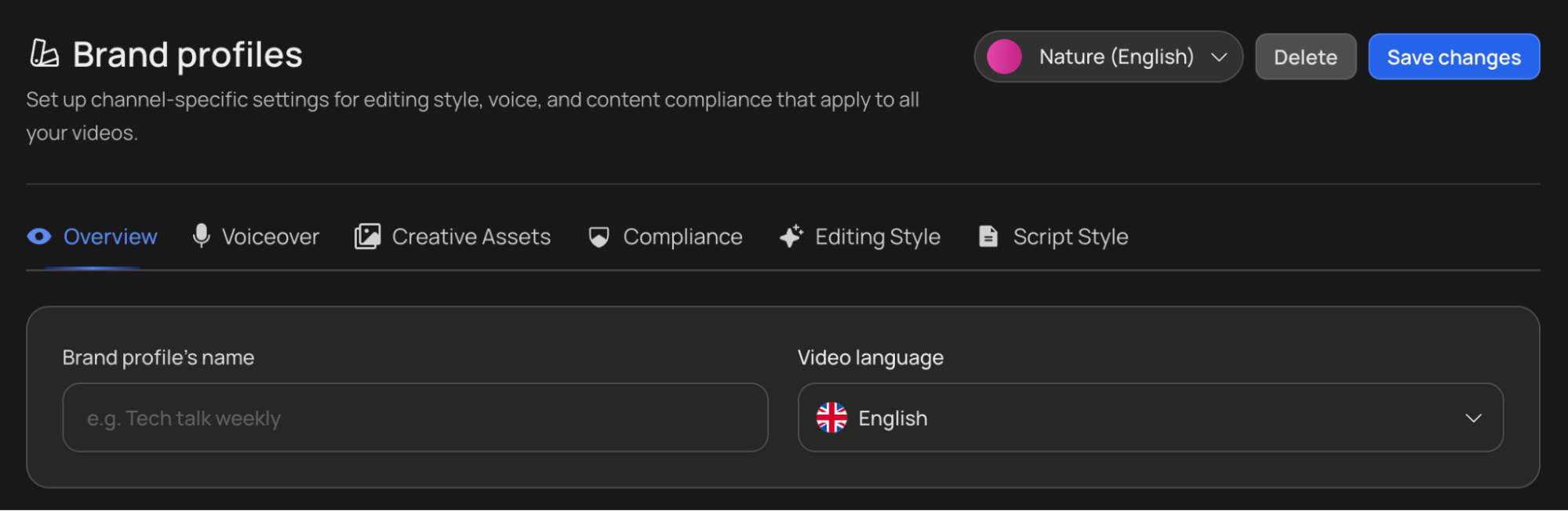
Creating a Brand Profile
- Click the Brand Profile selector, then New Brand Profile.
- Give it a name (usually your channel name).
- Set the video language.
- Walk through the tabs below.
Limits and validation
- Brand profile limits per plan are: Starter (5), Creator (10), Pro (20), Scale (30), and Studio (50).
- Profile names must be unique within a workspace; duplicate names are not allowed.
- A profile name can be at most 100 characters long.
Sharing across your workspace and team
- Brand profiles are shared across everyone in the workspace they were created in. Any workspace member can view, edit, create, or delete them, so a profile you set up is available to your whole team.
- Brand profiles are not shared between different workspaces; a profile lives in the workspace where it was made.
- The one exception: the creator of a profile can view and manage their own profiles across all the workspaces they belong to.
Because profiles are shared and editable by any member, agree on a naming convention with your team. The 100-character limit and the no-duplicates rule both help keep the list clean.
How It Works
A Brand Profile is organized into seven tabs, each controlling a different part of your channel’s identity:
| Tab | Functional Control |
|---|---|
| Overview | Defines the profile name and primary video language. |
| Voiceover | Sets the default narration voice for the channel. |
| Thumbnail Style | Sets your thumbnail defaults: variations, text, face, and default instructions, plus the reference channels under Train a channel. See Thumbnail Generator. |
| Creative Assets | Configures the background imagery and visual theme. |
| Compliance | Establishes content rules and element exclusions. |
| Editing Style | Learns how your channel cuts from one of your own videos. Experimental reasoning only. See Editing & Script Style. |
| Script Style | Learns how your channel writes from one of your own videos. Experimental reasoning only. See Editing & Script Style. |
Set up each tab, then click Save brand profile in the top right. Your settings become the new defaults for every video created under this profile.
Tab 1: Overview
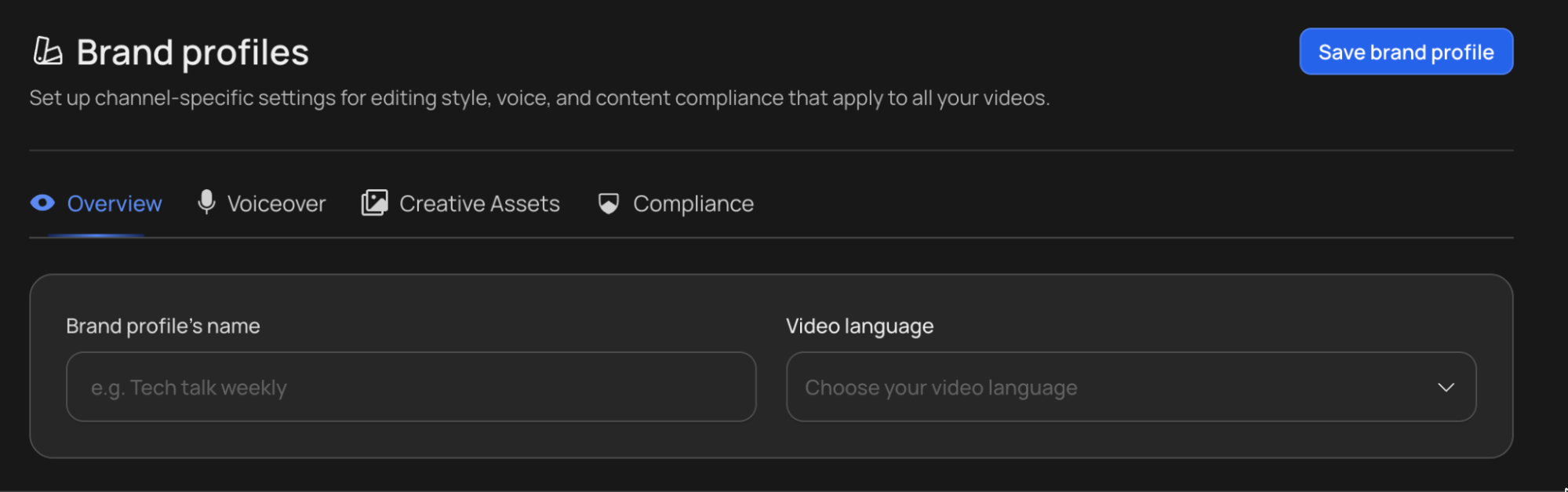
The starting point for a new profile. Set your default video language here.
Brand profile’s name. A label for your own reference (for example, Tech Talk Weekly). This is how you’ll identify the profile when you have more than one. It doesn’t appear in your videos.
Video language. Sets the default language for the profile. Choose your channel’s language here so you don’t have to set it on every video. If you run channels in two languages, create one profile per language. See Multi-Language for details and supported languages.
Tab 2: Voiceover
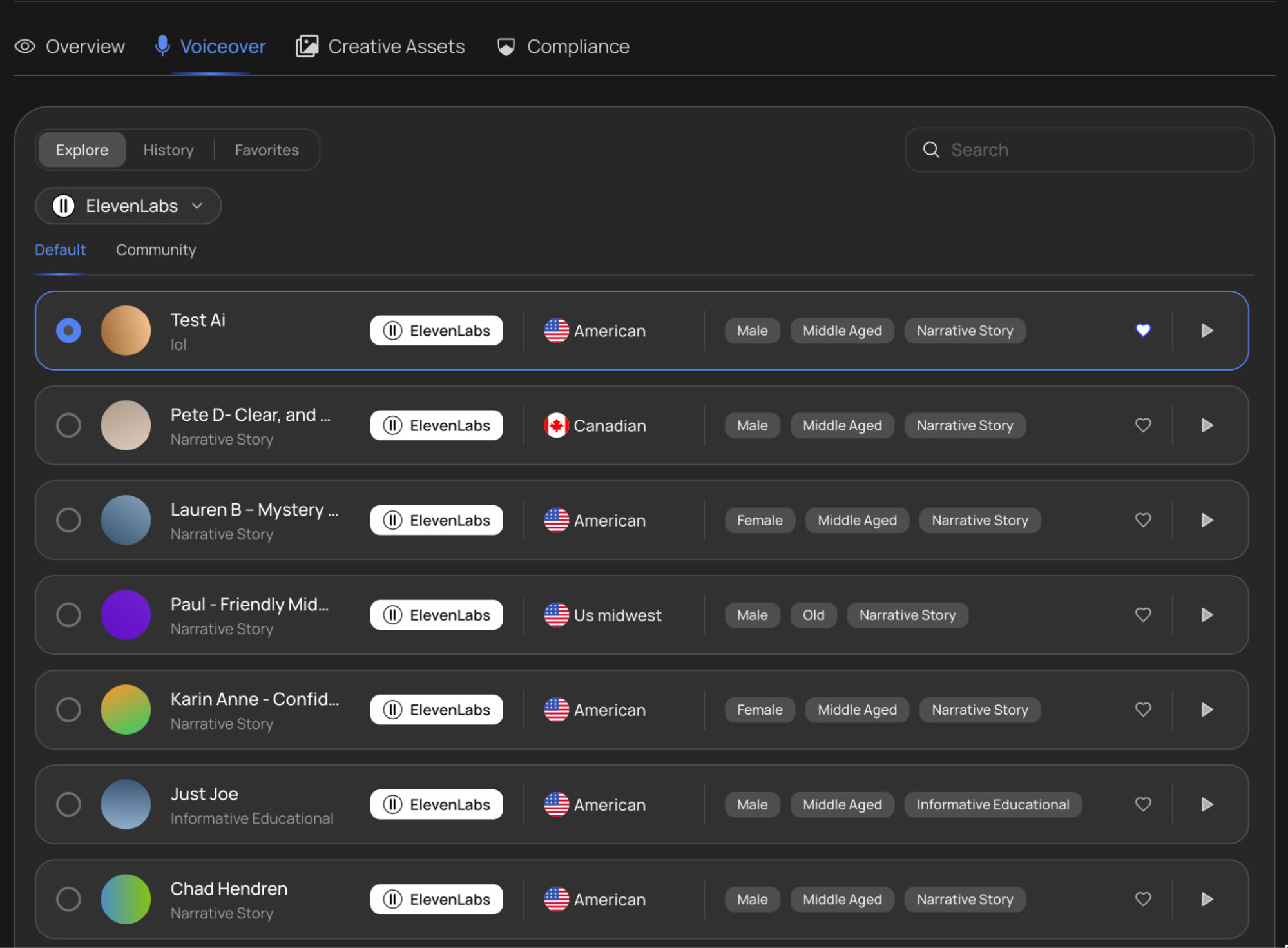
Pick the default narration voice for your channel. Every voice from the VidRush, ElevenLabs, and Cartesia libraries is available here, and the one you select becomes the standard voice applied to your videos. Voice output is now deterministic per Brand Profile, so the same profile produces consistent narration.
Each voice in the list shows at a glance:
Accent. The voice’s nationality and accent, marked with a flag (British, American, South African, Polish, Australian, Indonesian, and more).
Gender, age, and style tags. Quick descriptors such as Female / Young / Narrative Story so you can tell a voice’s character before previewing it.
Preview. Press the play button on any voice to hear a short sample before committing.
Use Search, Filters, and Sort by to narrow the library, and tap the heart to save voices to Favorites for quick access later.
For guidance on which voice to choose, including the 25 VidRush Exclusive voices and tips on stability for long videos, see Voice Selection.
Tab 3: Thumbnail Style
Your thumbnail defaults for this profile: how many variations each video generates, whether lettering and your face appear, and any creative direction to carry into every thumbnail. Reference channels live here too, under Train a channel. Full guide: Thumbnail Generator.
Tab 4: Creative Assets
Controls the visual look of every video in the profile: the background behind your content and the motion-graphics theme applied on top of it.
Background image
Choose the visual layer that sits behind your overlays, text, and transitions. You can:
Pick a preset. Select any background from the built-in gallery on the left.
Upload your own. Click Upload image to use a custom background. Your selection appears in the Selected image panel.
Theme selection
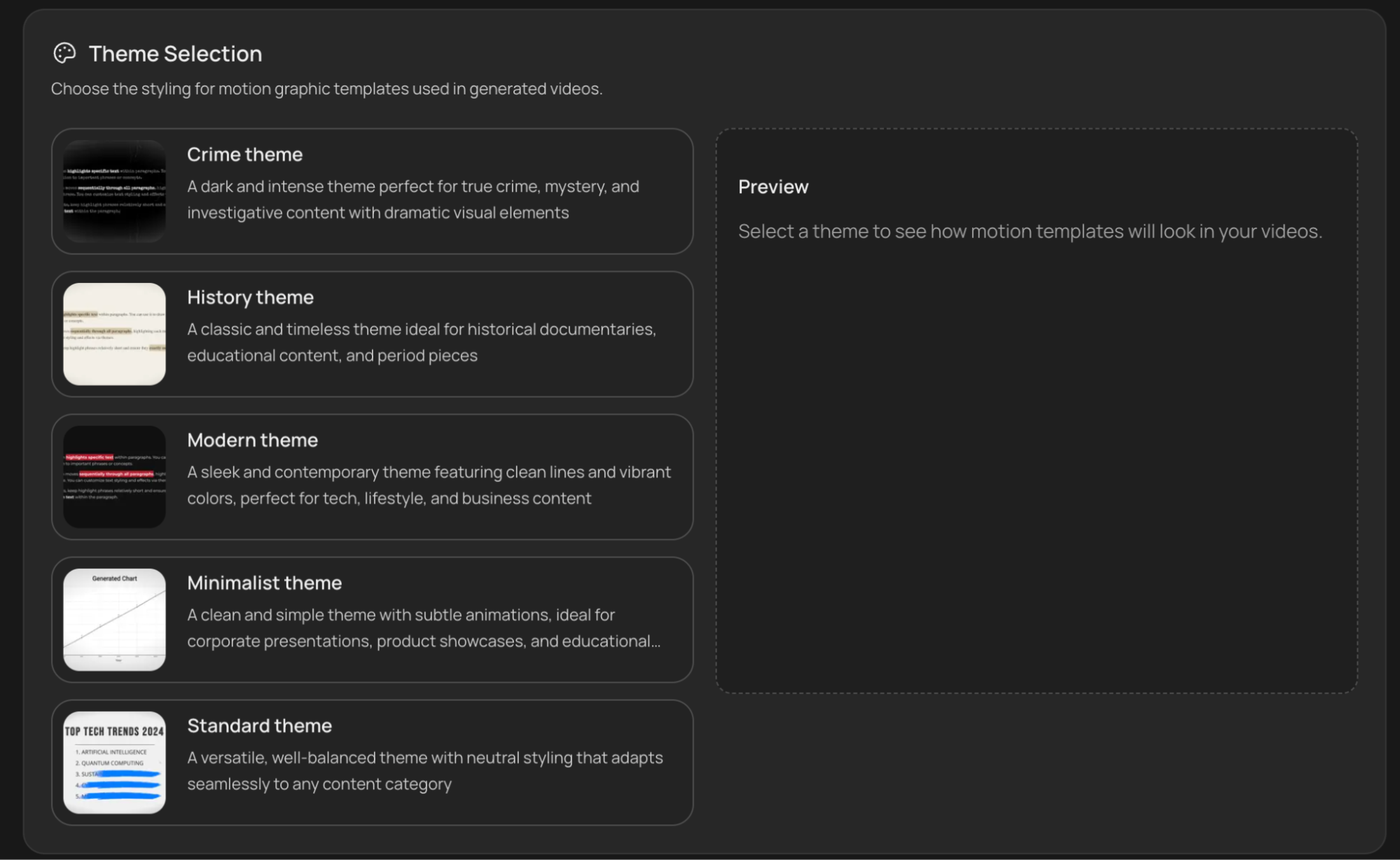
The theme controls fonts, colors, animations, text overlays, and transitions. VidRush offers five themes, and selecting one shows a live Preview of how motion templates will look in your videos:
| Theme | Best for |
|---|---|
| Crime | True crime, mystery, and investigative content |
| History | Historical documentaries, educational content, period pieces |
| Modern | Tech, lifestyle, and business content |
| Minimalist | Corporate presentations, product showcases, clean educational content |
| Standard | General-purpose or mixed content. Start here if unsure |
For a fuller breakdown of each theme, see Themes & Visual Style.
Animations, overlays, and effects (blocklisting)
You can disable animations, overlays, and effects globally, or one by one:
- Disable individual motion graphics. Click any single graphic to switch it off; it will never appear in your videos.
- Disable entire groups/categories of motion graphics. Block a whole category at once (for example all map graphics: World Map, Region Map, Country Map, Conflict Map) instead of one by one.
- Disable individual transitions. Click any transition to turn it off, or disable all of them.
Go through the full list once and decide which graphics and transitions fit your brand. That is exactly what this screen is for.
Quality warning: motion graphics and transitions are a large part of what makes VidRush videos feel produced. Disable many of them and your videos can come out looking noticeably plainer. If your generations suddenly look cheap, check what you disabled here before reporting a bug.
Tab 5: Compliance
Compliance settings let you exclude specific visual elements and templates from every video in the profile. This is useful if certain effects don’t fit your brand, cause issues, or aren’t right for your audience.
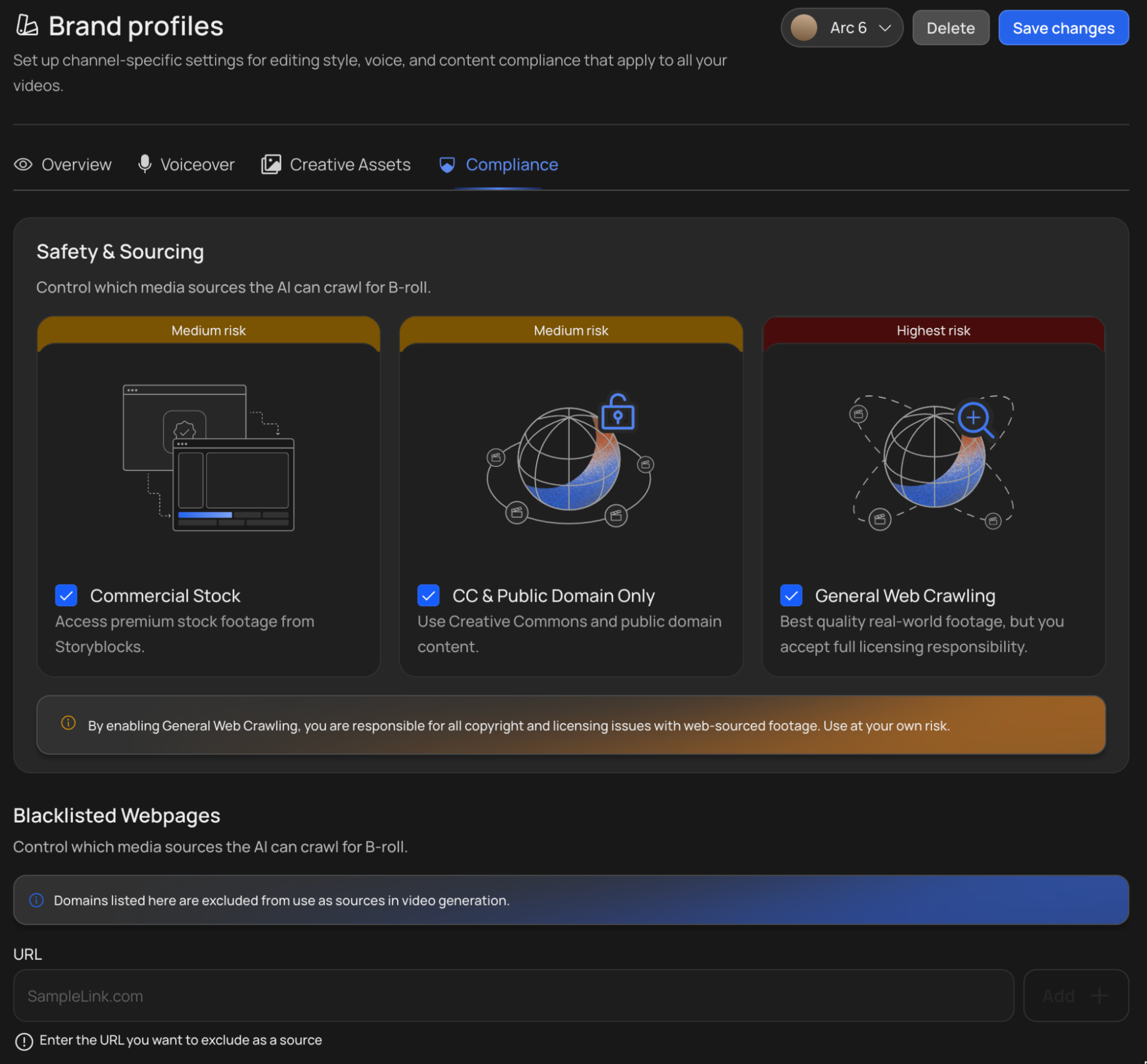
Blacklisted/Whitelisted Webpages
Manage both blacklisted and whitelisted YouTube channels, websites, or other sources here to control exactly where your footage is sourced from. Full rules: see Compliance & Footage Sourcing.
Tabs 6 and 7: Editing Style and Script Style
Two optional tabs that learn your channel’s look and writing from a YouTube video you paste in. Each takes its own reference video, and both only take effect on Experimental reasoning. Full guide: Editing & Script Style.
Saving Your Profile
Click Save brand profile in the top right at any time to store your settings. Once saved, the profile’s voice, language, background, theme, and compliance rules apply automatically to new videos on that channel, so your content stays on-brand without repeating setup for every upload.
How the Brand Profile interacts with generation
- Every prompt is produced with the active Brand Profile.
- The Quote Statement always shows which profile is being applied, so a wrong-profile mistake gets caught before credits are spent.
- A Custom Script or Custom Voiceover replaces the AI writing or narration step; your profile’s language, voice (for scripts), theme, backgrounds, and compliance rules still apply.
- A talking-head upload replaces the footage-sourcing step for your A-roll, and an AI avatar replaces the presenter; in both cases your profile still governs the theme, captions, backgrounds, and compliance rules layered around them.
- A saved Editing Style or Script Style is applied only when the video is generated on Experimental reasoning. See Editing & Script Style.