Compliance & Footage Sourcing
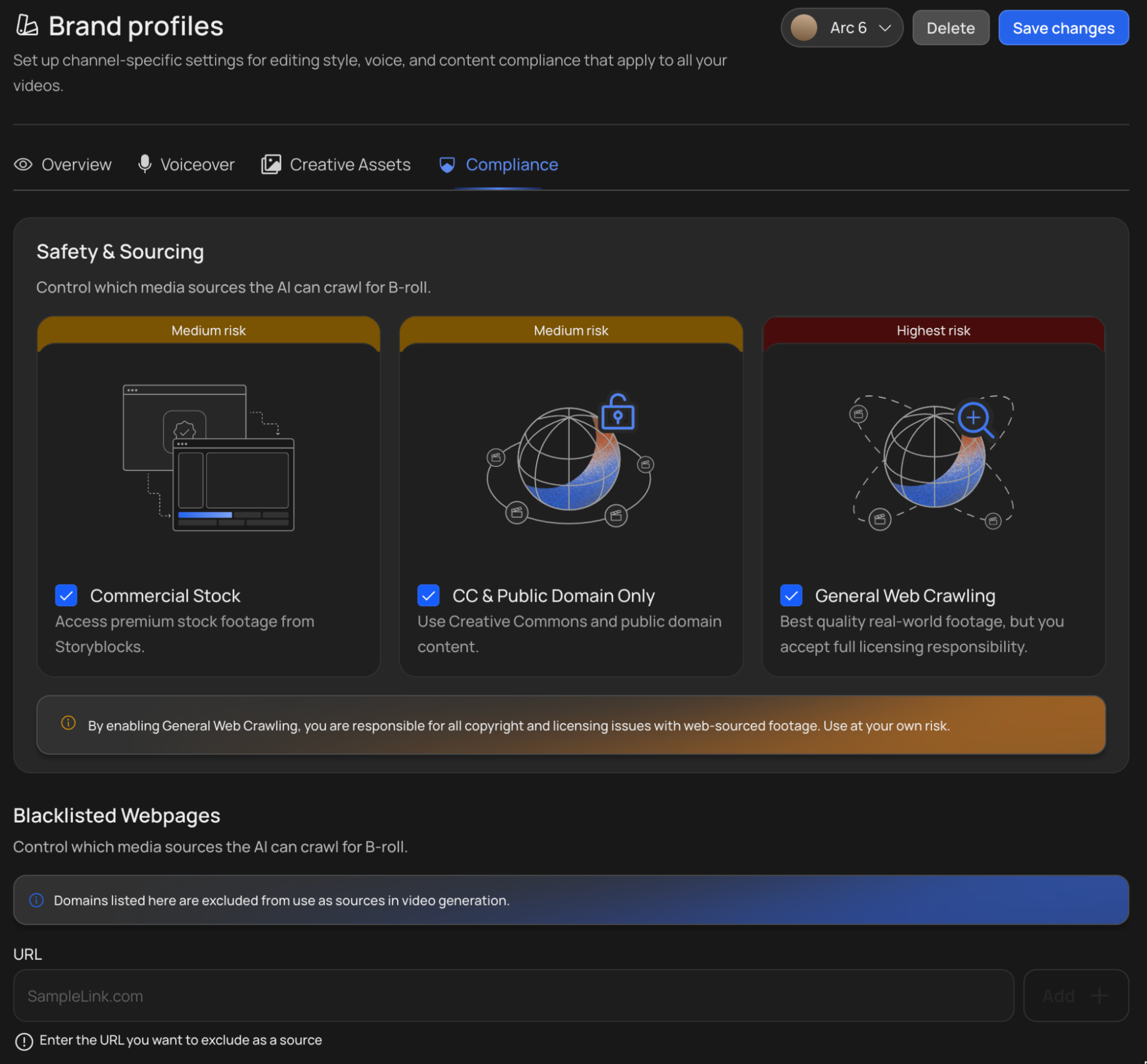
VidRush sources footage from licensed stock libraries, public-domain archives, and the open web. The Compliance tab of your Brand Profile controls where that footage comes from, and lets you block sources you never want in your videos.
When you supply your own footage
Blacklists and sourcing tiers govern the footage VidRush finds for you. They do not apply to footage you upload yourself, which is yours to use. Everything VidRush adds around your recording, the B-roll and supporting visuals, is still sourced under your profile’s rules.
If the person on camera is not you, make sure you have the right to use their likeness before uploading. VidRush does not verify consent, and a recording of someone who did not agree to appear is your responsibility, not the platform’s.
Avatar videos carry their own restrictions on how a presenter may be portrayed, including a ban on posing as medical, legal, or official personnel. See AI Avatar.
Blacklisting sources
Add any source to your blacklist and the footage agent will never pull images or videos from it:
- specific YouTube channels
- specific websites
- image repositories
The typical use case: you received a copyright claim or strike from a particular channel, or you know a website’s owner goes after creators. Add the source here and it is excluded from all future generations with this profile.
Keep the blacklist short. You can blacklist individual YouTube channels, websites, or any source, except youtube.com itself, which cannot be blacklisted. Every entry shrinks the pool the footage agent can draw from. Generic stock-looking footage, repetitive clips, or visuals that stop matching the narration are the symptoms of an over-aggressive blacklist. If you see them, trim the list.
If you receive a copyright strike, report it to support, ideally with the source channel or website if you can identify it. The team maintains a global high-risk-source list that protects all users, and your report feeds it.
Whitelisting sources
Want the AI to prioritize specific high-quality channels or sites? Add them to your whitelist.
- How it works: When you add a source to your whitelist, our footage agent gives it preference during the search process.
- Capacity: You can add up to 5 sources to your whitelist per Brand Profile.
Note: While whitelisting boosts the likelihood of a source being used, it does not guarantee it will appear in every video, as other factors like content relevance and copyright compliance still apply.
Footage sourcing tiers
You choose which kinds of sources VidRush may use:
1. Commercial Stock
Premium licensed footage, for example from Storyblocks.
Storyblocks content is licensed in perpetuity. When you render a video on VidRush containing Storyblocks footage and your channel is whitelisted (VidRush whitelists it for you automatically), you will not receive a claim on that content, even if you later cancel your VidRush account.
Accidental claims on Storyblocks footage happen in roughly 1% of cases. If you get one, contact support: we provide the licensing information you need to dispute and clear it.
2. Creative Commons and Public Domain
Free-to-use footage from public archives.
Attribution is on you. When your video uses Creative Commons or public-domain footage (with web crawling off), a pop-up in the editor at render time shows you all the licensing information. Copy it into your YouTube video description as attribution. Skipping the attribution makes any resulting claim your own risk.
3. General Web Crawling
The widest net: footage sourced from across the open web.
Combining tiers
The tiers trade copyright safety against footage variety:
- Commercial Stock alone is the safest setup. Everything is licensed and nothing needs attribution. The trade-off is a smaller footage pool.
- Stock plus Creative Commons / Public Domain widens the pool; remember the attribution step.
- All three enabled gives maximum variety. If a user disables General Web Crawling and keeps only Commercial Stock + Public Domain, the available clips and images drop by about 90% — from the open internet down to a few specialized repositories — and the AI’s footage matching becomes much weaker. Users choosing that setting should expect weaker footage matching as the trade-off.
YouTube’s AI-content disclosure
One compliance item lives on YouTube’s side: any video with an AI voice (and AI images) needs the “Altered or synthetic content” disclosure toggled ON at upload. Undisclosed AI content gets demonetized much faster once YouTube detects it.