Dashboard
When you log in to VidRush, you land on a clean interface with one question at the center:
“What would you like to create today?”
That prompt field is where every video begins. Type your idea, including the title, format, and length you want, or use the + icon to attach a script or voiceover, upload talking-head footage, or pick an AI avatar. VidRush handles the rest.
If you are new, the home page offers a Watch the tutorial and a Watch the demo button to get oriented, and shows your recent projects so you can jump back into whatever you just created.
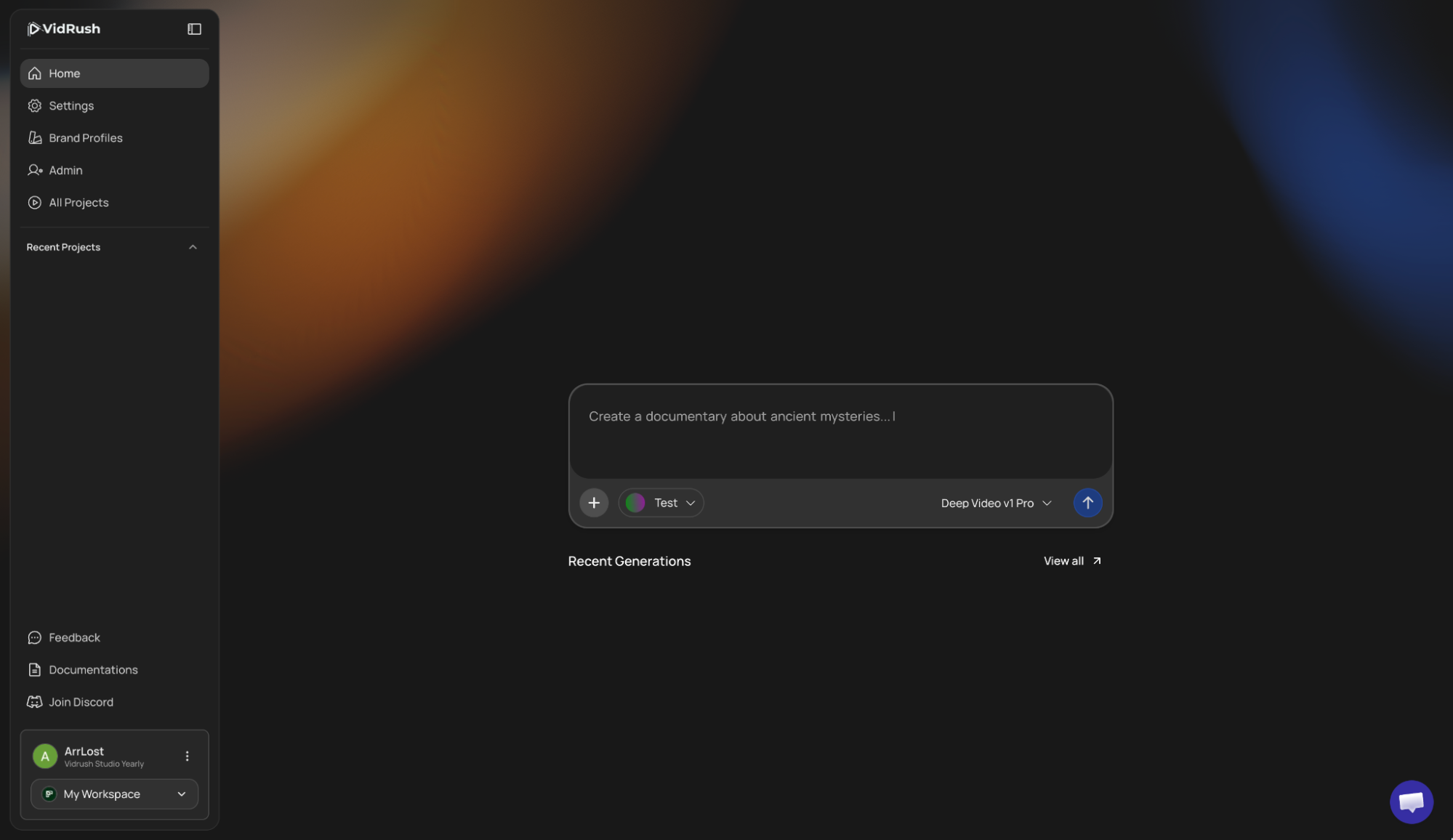
The Prompt Field
The large input at the center of your screen is your starting point. Enter your video idea, topic outline, full custom script, or a voiceover file. The old Format and Duration menus are gone; say what you want (“make me a 25-minute documentary about…”) and VidRush fills in the settings. After you submit, you confirm everything in the Quote Statement before generation begins.
Below the prompt field sit two selectors. The Brand Profile selector lets you pick an existing profile or create a new one; it controls the language, voice, visual style, and compliance rules for this video. The model selector switches between Mini, Pro, and Persona I, and sets the reasoning effort to Low, Medium, or Experimental on Mini and Pro. See Generation Models and Persona I.
Above the prompt field sit quick actions for the two newest input types, Upload Talking Head and Use AI Avatar. Both are also available under the + icon. On Persona I these become Use AI avatar and Custom script, since Talking Head is not available on that model. Choosing either attaches it to the video you are about to make and keeps anything you have already typed. See Talking Head and AI Avatar.
Left Sidebar
Projects: all your videos in one list, whether processing, ready to edit, or saved as drafts. Use the search bar to find a video, check when each one was created, and switch between list and grid view. Click any project to open the editor or check its status.
Feedback: post feedback, ideas, and bugs. This redirects to the VidRush feedback screen.
Documentation: one click straight to these docs.
Join Discord: the community for announcements and support.
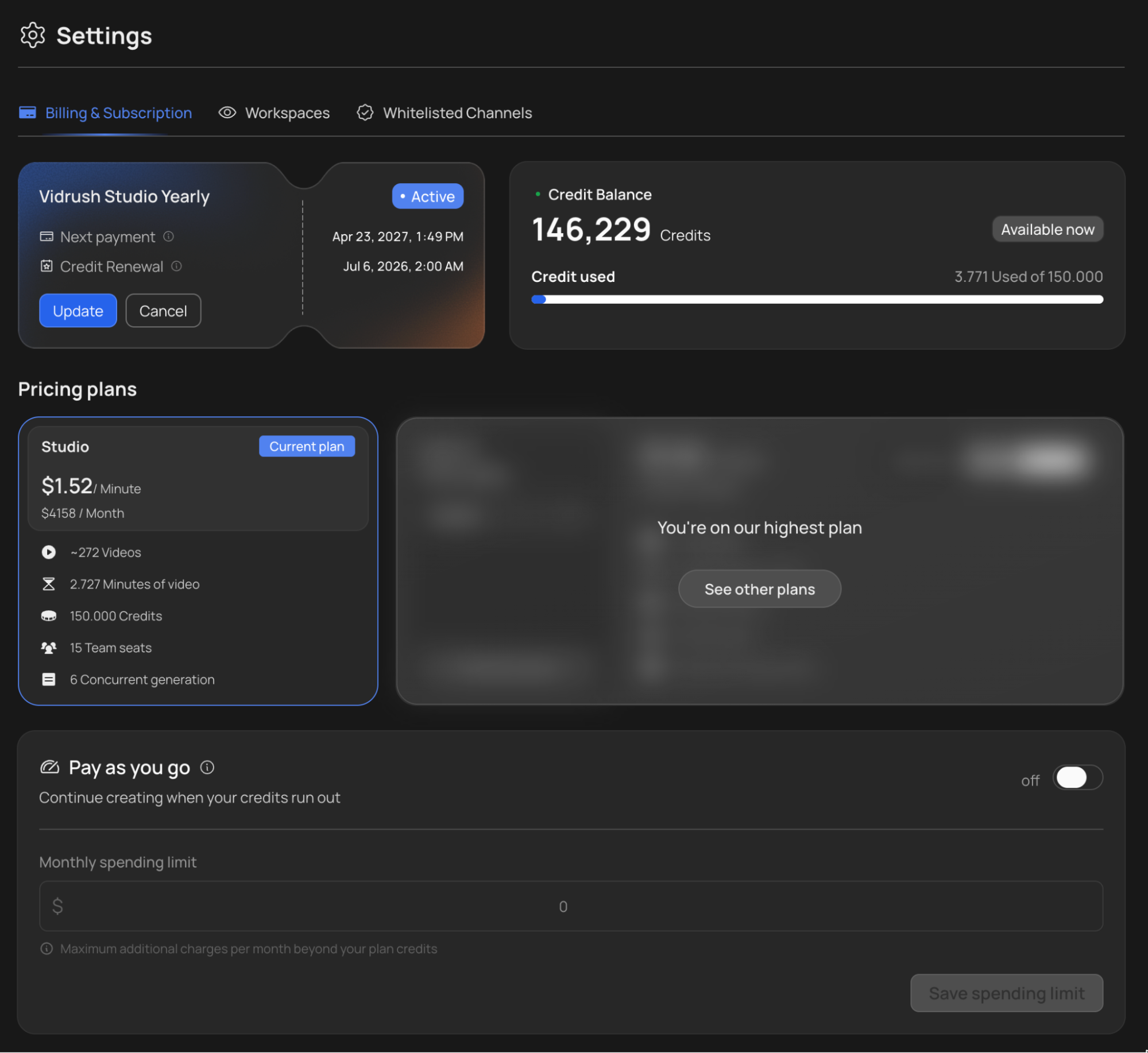
Settings: the new settings page covers Billing & Subscription. You can see your current plan and what each minute of video costs on it (for example, $1.46 per minute on Studio), browse the other plans, toggle Pay-As-You-Go, buy a Top-Up balance, and open Manage Billing. Below that sits your Credit History: an icon-coded, line-by-line view of every top-up, renewal, and spend, so you always know where your balance went. See Credits & Billing, Pay-As-You-Go, and Top-Up Credits.
You may occasionally notice very small fractional deductions in your credit ledger. Those come from the Rush Agent, the conversational editor built into the editor. Each action you ask it to perform is billed separately from the video itself. Normal video generations are charged as before.
Bottom left: Workspaces
If you’re working solo, you’ll see your Personal Workspace selected by default. If you’re part of a team, use the workspace switcher in the bottom-left corner to switch between workspaces.
From this same menu, you can create new team workspaces (subject to the limits of your specific plan) or manage members in an existing one. Team members share the workspace’s project list and credits, so everyone stays on the same page.
Videos can now be moved between workspaces. Custom avatars cannot, so check which workspace you are in before saving one. See Custom Avatar.
For more on setting up teams, see Workspaces & Team Management.