Talking Head
Record yourself talking to camera, upload it, and VidRush builds the video around you. Your footage becomes the A-roll: VidRush layers B-roll over your narration, adds captions and your theme, and assembles the finished video.
This is the option when you want to be on screen. Everything after the upload works the way it normally does: prompt field, reasoning effort, Quote Statement, and editor.
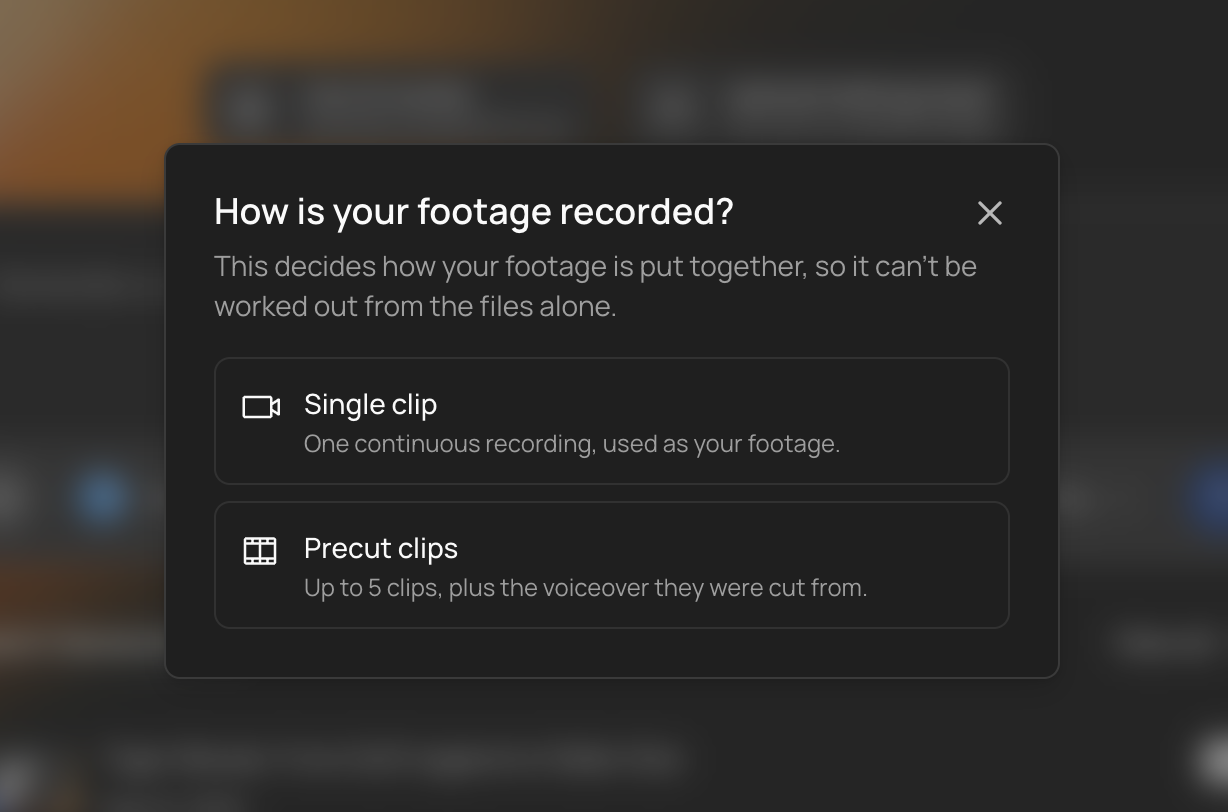
Single clip or Precut clips
When you upload, VidRush asks how your footage was recorded. This cannot be worked out from the files themselves, so your answer decides how everything gets put together.
Single clip. One continuous recording, used as your footage. VidRush does the editing: it tightens pacing, cuts dead air and filler, picks the supporting footage, and assembles the video around you. Record once and hand the rest over.
Precut clips. Up to five clips, plus the voiceover they were cut from. You have already done the editing, so VidRush leaves it alone. Your voiceover is not re-cut, your clips are not trimmed or reordered, and each one plays in full. Captions and light overlays are the most that gets added on top. Everywhere your clips do not cover, B-roll fills in, so the finished video looks like any other Talking Head video.
Both produce the same kind of finished video. The difference is who does the cutting.
How to use Talking Head
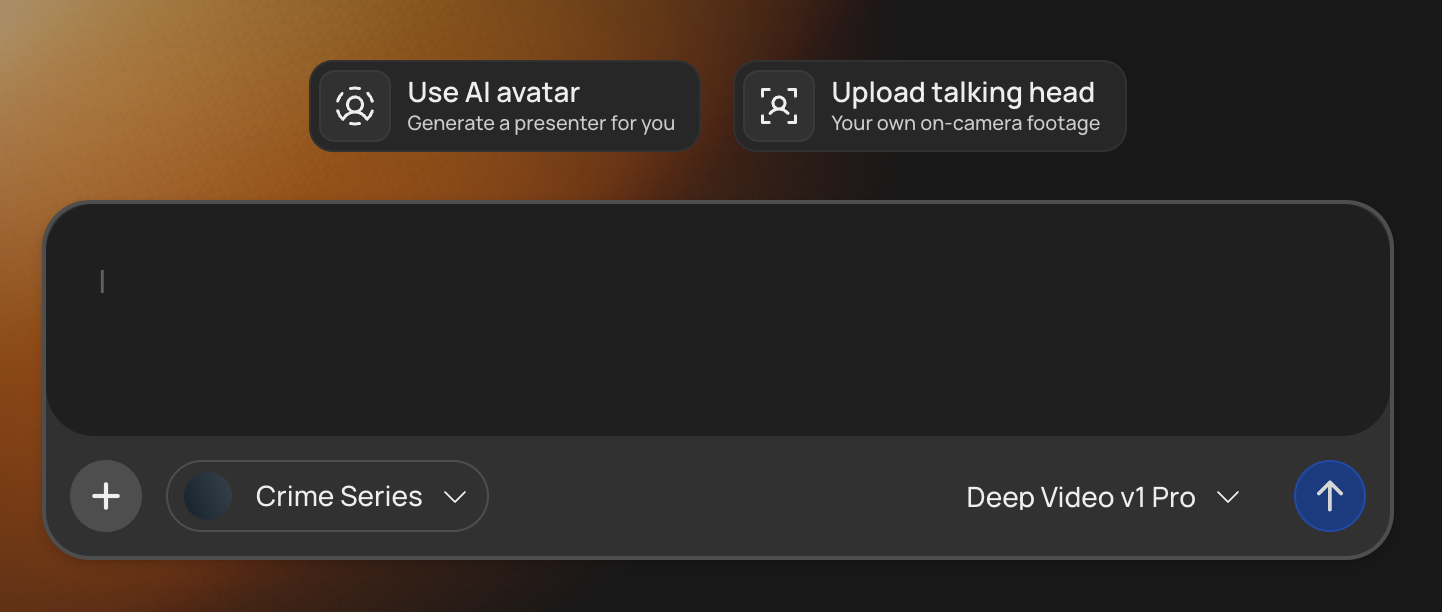
- Open the prompt window and select Upload Talking Head, either from the tab above the input box or the + button in the bottom left.
- Choose Single clip or Precut clips.
- Upload your files. Single clip takes one recording. Precut clips takes your voiceover plus up to five clips cut from it.
- Write your prompt.
- Pick your reasoning effort.
- Review the Quote Statement and approve.
VidRush takes it from there.
What to put in the prompt
The prompt works differently here. You already supplied the content by recording it, so the prompt is context rather than a brief: what the recording is, who it is for, and what you want the finished video to do.
You do not need to ask for the editing itself. Cutting filler and dead air, choosing supporting footage, pacing, captions, and audio cleanup all happen automatically. Asking for them changes nothing.
On Single clip, the prompt controls this
| You want | Say this |
|---|---|
| A specific length | ”Make this a 10 to 12 minute video.” Available bands are 6–8, 10–12, 18–20, 30–40, and 50–60 minutes. |
| A tighter cut | ”Keep it tight” or “just the essentials” |
| To keep as much as possible | ”Comprehensive, keep the full argument” |
| Your intro removed | ”Remove the greeting and intro, start on the main point.” Nothing else will cut your intro. |
| A Top 10 structure | Include “top 10” in your prompt |
| A specific focus | ”Focus on X, cut the tangent about Y” |
Anything you state directly wins over what VidRush infers. A vague prompt gets default treatment. Length and format can still be changed in the Quote Statement before you approve, and what you approve is what gets made.
On Single clip you cannot choose a length longer than your recording, and in practice the finished video runs to about 90% of it, because silences and weak clips are removed. A 20-minute recording can be cut to the 18–20 band but not to 30–40 or above, and the same limit applies in the Quote Statement.
On Precut clips, the prompt does something different
Nothing in the table above applies, because nothing is being edited. Your length comes from your voiceover, and your cut is already made.
Use the prompt to say who the video is for and what it is meant to do. That context shapes the B-roll chosen to fill the gaps around your clips.
The input validator is more permissive on a talking-head project, because your recording carries the narrative rather than sourced footage having to match it. Content rules still apply exactly as they do everywhere else.
Prompt templates
Condensed and refocused (Single clip)
Turn this into a tight 10 to 12 minute documentary-style video. Keep my
greeting and intro. Focus on the three pricing mistakes and cut the
tangent about the conference. Keep my closing call to action intact.
No intro, Top 10 (Single clip)
Make this a punchy top 10 video, around 6 to 8 minutes. Remove the
greeting and intro and start directly on the first item. Prioritise the
segments with specific numbers.
Audience context (Precut clips)
This is for founders running small SaaS businesses who already
understand pricing basics. The tone should stay practical rather than
motivational.
What Talking Head cannot do
Asking for these in the prompt will not make them happen.
- Run on Mini. Mini is an image-only model, so talking-head projects use Deep Video v1 Pro.
- Cut your recording into clips. One recording produces one finished video. VidRush does not chop a long recording into shorts, highlights, or a set of social cuts, and on Precut clips it will not split the clips you supply either.
- Re-edit what you already edited. On Precut clips your voiceover and your clips are used exactly as supplied. Asking for a tighter cut, a different order, or trimmed clips changes nothing. If you want VidRush to do the editing, use Single clip instead.
- Turn a long recording into a short one. The minimum upload is six minutes and the output is long-form. Asking for a 60-second version, or naming a target length, will not shrink it. The edit removes dead air and filler, and that is what sets the final duration.
- Produce vertical or square video. Output is widescreen. Reframing for other placements is not available yet.
- Translate or dub. No translation or dubbing is provided. See Multi-Language.
- Generate a presenter. Talking Head edits footage of a real person. If you want someone on screen without filming, see AI Avatar.
- Handle more than one speaker. Podcasts, interviews, and panel recordings are rejected on upload, not trimmed down to one person.
Recording requirements
| Requirement | Details |
|---|---|
| Formats | MP4, MOV, WebM |
| Video encoding | H.264, HEVC, VP9, or AV1 |
| Audio encoding | AAC, MP3, Opus, or PCM |
| Min duration | 6 minutes |
| Max duration | 2 hours |
| Max file size | 5 GB |
| Files per project | One recording on Single clip, or one voiceover plus up to five clips on Precut clips |
| Spoken language | English |
Talking-head uploads must be in English, even though prompts themselves are accepted in English, German, and Spanish. A German or Spanish recording is rejected. See Multi-Language.
Your voiceover on Precut clips
Your voiceover is the finished narration your clips were cut from, so it needs to be usable as it is.
Edit it before you upload. Pauses, ums and uhs are not removed. Whatever is in the file is what your viewers hear, so clean it up first.
File requirements follow Custom Voiceover.
How to record for best results
Your footage is the spine of the video, and nothing downstream can fix a recording that does not work. Most of this applies to Single clip, where VidRush is doing the cutting. On Precut clips you have already made those decisions.
| Do this | Why it matters |
|---|---|
| Pause between thoughts | Cuts land in the silences. Talk without breaks and there is nowhere clean to cut. |
| Redo a flubbed line after a pause | Both attempts are found and the better one kept. No need to restart the recording. |
| Stay silent about mistakes | ”Cut that” and “take two” are treated as speech. Silence is the signal. |
| Look at the lens | Holding the lens keeps you on screen. Looking away for long stretches cuts to other footage. |
| Stay in frame and on camera | Slideshows and screen recordings are rejected, and long stretches with nobody visible get flagged. |
| Light your face and check focus | Too dark or too soft is rejected outright. Merely soft gets a warning and proceeds. |
| Frame yourself off-centre | Captions and graphics need room, and are never placed over your face. |
| Get the microphone close | The transcript drives captions, footage choice, and pacing. Weak audio degrades all three. |
| Open with a real intro, close with a payoff | Your intro survives the edit unless you ask for it to be removed, and a clear close keeps you on screen for it. |
| Drop strong lines anywhere | Bold claims are found wherever they occur and can be promoted to the opening, so nothing is wasted by arriving late. |
| Record more than you need, stay on topic | The edit condenses to your target length. Structure earns a longer video, rambling gets cut hard. |
What happens automatically
None of this needs to be asked for.
- You appear on screen for the moments that carry you: hooks, personal statements, your closing. Supporting footage covers the rest. On Precut clips, you appear wherever your clips are, and B-roll covers everything else.
- Re-hooks bring you back on screen at turning points to reset attention.
- Text and graphics are placed so they never cover your face.
- Audio is cleaned, levelled, and brought to broadcast loudness.
How your recording is checked
Your recording is checked as it uploads, before anything is generated. The check ends in one of three ways.
| Outcome | What it means |
|---|---|
| Passed | Nothing to flag. Your video continues into the queue. |
| Passed with a warning | Something is worth knowing, but the upload proceeds. |
| Rejected | The recording cannot be used as it is. Fix the issue and upload again. |
Three things are examined: the file itself, what the camera shows, and what you say. Each message names the problem in one sentence, with the fix directly underneath it.
- The file. Length, size, format, encoding, and whether it has both a picture and a sound track.
- The camera. Whether a single presenter is visible, in focus, adequately lit, and doing nothing prohibited.
- The speech. Whether it is English, whether it is a real spoken presentation, and whether anything said is prohibited.
Five things produce a warning rather than a rejection, and all five are safe to proceed with:
| Warning | Note |
|---|---|
| Low picture quality | Merely soft warns. Too dark or fully out of focus rejects. |
| Variable frame rate | Optional to re-export. |
| Black bars around the picture | Optional to crop. |
| Presenter in an official or professional uniform | Advisory only. Scrubs, a lab coat, military or police uniform, or judicial robes. A real professional recording in work clothing is a legitimate upload. |
| Presenter clearly appears to be under 18 | Advisory only, high-confidence cases only. A youthful-looking adult is not flagged. |
When to upload the same file again. Some rejections end with a line inviting you to upload again to be re-checked. Take it literally. Those are judgement calls, they are not identical every time, and a second attempt often clears one. Rejections without that line are measured facts about your file, so the same file will always give the same answer, and re-exporting or trimming is the only way forward.
Full detail on what is and is not accepted: see Input Validation.
Good to know
- A problem in one stretch still blocks the upload, but you only have to fix that stretch. The message names roughly when it happened, accurate to about five minutes: “The picture is too blurry or too dark around 5:00–10:00.” Re-record or trim that section rather than starting over. If more than two stretches are affected, the message names the first two and says “and elsewhere”.
- Colour grading is not applied to your footage. Grading runs on B-roll only, so your own clips keep their original colour. See Editing Your Video.
- Your Brand Profile still applies. Theme, backgrounds, captions, compliance settings, and blacklists all shape the B-roll and the styling laid over your footage. Your own footage is yours and is not subject to sourcing tiers, but everything added around it is. See Compliance & Footage Sourcing.
- Uploading someone else means having their permission. If the person on camera is not you, make sure you have the right to use their likeness before you upload.
- A rejected upload costs nothing. Credits are deducted when a video completes. See Credits & Billing.